Search...

Out of support

Search...

Out of support

Introduction

Introduction

The Designer Agent is the AI assistant of the API Designer. It helps you write the OpenAPI specification of an API: it can create a new specification from a description of your needs, enrich an existing one and fix the errors found by the validation.

The Designer Agent is available only if enabled for your installation. The API Designer itself is part of the Platform and can be used without the assistant (see Designing APIs).

The Designer Agent offers the following operations, depending on the state of the specification open in the Designer:
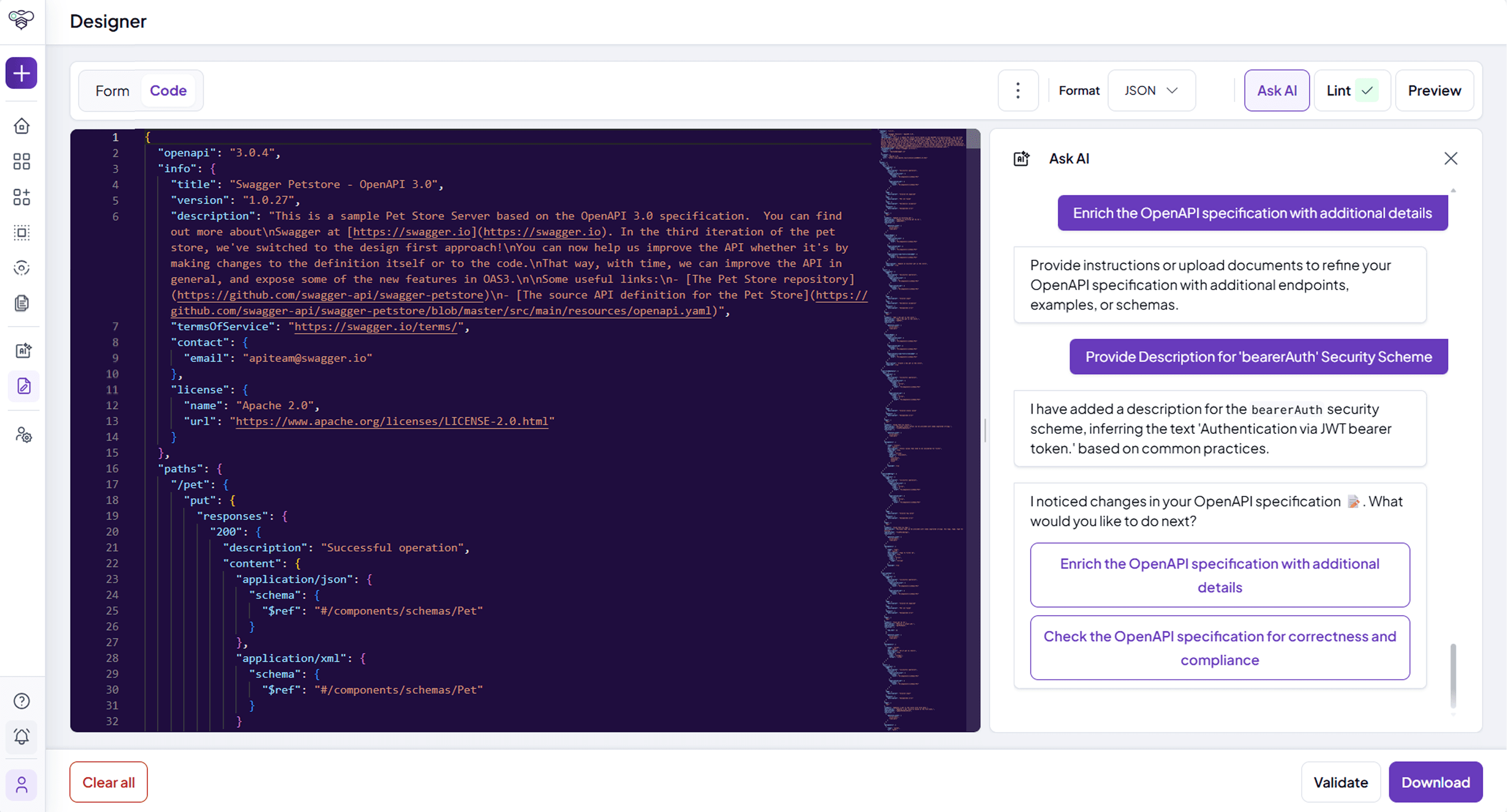
API Designer with the Ask AI panel suggesting enrichments to the OpenAPI specification

Operation

What it does

When it is offered

Create

Generates a new specification from your description and from the documents you attach.

The Designer is empty.

Enrich

Changes or completes the current specification according to your request, for example adding schemas or examples.

A specification is open.

Fix

Corrects the errors and warnings found by the validation of the specification.

The specification is not valid.

Validate

Checks the specification against the OpenAPI standard and the governance rules.

The specification has been changed since the last check.

Using the Designer Agent

Prerequisites:

  • The Designer Agent is enabled for your installation and for your type of user.

  • The API Designer is open.

Steps:

  1. Click Ask AI in the top bar of the API Designer. The assistant opens in a side panel.

  2. Choose the operation among those offered. Use Change option to choose a different one.

  3. For Create and Enrich, describe what you need, starting from one of the suggested prompts if you wish, and optionally attach documents that describe the API (for example functional specifications or existing documentation).

  4. Send the request and wait for the answer. Use Stop thinking to cancel an operation in progress.

  5. Review the proposed changes, which the Designer shows in the Code View, and click Accept to apply them or Reject to discard them.

Post-Conditions:

  • If you accept, the specification is updated and validated again. If you reject, the specification returns to its previous state.

Tips:

  • While a proposal is waiting for your decision, the other editing functions of the Designer are not available.

  • After you accept a change, open Suggestions to see further improvements proposed by the assistant.

  • Requests are limited to 250 characters: use attachments to provide longer descriptions. The types and the number of files you can attach depend on the configuration of your installation.

  • Always review the proposed specification before saving it.

Menu della documentazione

Introduction

Table of Contents

Introduction

The Designer Agent is the AI assistant of the API Designer. It helps you write the OpenAPI specification of an API: it can create a new specification from a description of your needs, enrich an existing one and fix the errors found by the validation.

The Designer Agent is available only if enabled for your installation. The API Designer itself is part of the Platform and can be used without the assistant (see Designing APIs).

The Designer Agent offers the following operations, depending on the state of the specification open in the Designer:

API Designer with the Ask AI panel suggesting enrichments to the OpenAPI specification

Operation

What it does

When it is offered

Create

Generates a new specification from your description and from the documents you attach.

The Designer is empty.

Enrich

Changes or completes the current specification according to your request, for example adding schemas or examples.

A specification is open.

Fix

Corrects the errors and warnings found by the validation of the specification.

The specification is not valid.

Validate

Checks the specification against the OpenAPI standard and the governance rules.

The specification has been changed since the last check.

Using the Designer Agent

Prerequisites:

  • The Designer Agent is enabled for your installation and for your type of user.

  • The API Designer is open.

Steps:

  1. Click Ask AI in the top bar of the API Designer. The assistant opens in a side panel.

  2. Choose the operation among those offered. Use Change option to choose a different one.

  3. For Create and Enrich, describe what you need, starting from one of the suggested prompts if you wish, and optionally attach documents that describe the API (for example functional specifications or existing documentation).

  4. Send the request and wait for the answer. Use Stop thinking to cancel an operation in progress.

  5. Review the proposed changes, which the Designer shows in the Code View, and click Accept to apply them or Reject to discard them.

Post-Conditions:

  • If you accept, the specification is updated and validated again. If you reject, the specification returns to its previous state.

Tips:

  • While a proposal is waiting for your decision, the other editing functions of the Designer are not available.

  • After you accept a change, open Suggestions to see further improvements proposed by the assistant.

  • Requests are limited to 250 characters: use attachments to provide longer descriptions. The types and the number of files you can attach depend on the configuration of your installation.

  • Always review the proposed specification before saving it.

Menu della documentazione

Introduction

Table of Contents

Introduction

The Designer Agent is the AI assistant of the API Designer. It helps you write the OpenAPI specification of an API: it can create a new specification from a description of your needs, enrich an existing one and fix the errors found by the validation.

The Designer Agent is available only if enabled for your installation. The API Designer itself is part of the Platform and can be used without the assistant (see Designing APIs).

The Designer Agent offers the following operations, depending on the state of the specification open in the Designer:

API Designer with the Ask AI panel suggesting enrichments to the OpenAPI specification

Operation

What it does

When it is offered

Create

Generates a new specification from your description and from the documents you attach.

The Designer is empty.

Enrich

Changes or completes the current specification according to your request, for example adding schemas or examples.

A specification is open.

Fix

Corrects the errors and warnings found by the validation of the specification.

The specification is not valid.

Validate

Checks the specification against the OpenAPI standard and the governance rules.

The specification has been changed since the last check.

Using the Designer Agent

Prerequisites:

  • The Designer Agent is enabled for your installation and for your type of user.

  • The API Designer is open.

Steps:

  1. Click Ask AI in the top bar of the API Designer. The assistant opens in a side panel.

  2. Choose the operation among those offered. Use Change option to choose a different one.

  3. For Create and Enrich, describe what you need, starting from one of the suggested prompts if you wish, and optionally attach documents that describe the API (for example functional specifications or existing documentation).

  4. Send the request and wait for the answer. Use Stop thinking to cancel an operation in progress.

  5. Review the proposed changes, which the Designer shows in the Code View, and click Accept to apply them or Reject to discard them.

Post-Conditions:

  • If you accept, the specification is updated and validated again. If you reject, the specification returns to its previous state.

Tips:

  • While a proposal is waiting for your decision, the other editing functions of the Designer are not available.

  • After you accept a change, open Suggestions to see further improvements proposed by the assistant.

  • Requests are limited to 250 characters: use attachments to provide longer descriptions. The types and the number of files you can attach depend on the configuration of your installation.

  • Always review the proposed specification before saving it.