Search...

Out of support

Search...

Out of support

Introduction

This section provides an overview of the technical prerequisites, supported environments, and navigation essentials to help you get started quickly and effectively. From system requirements and authentication options to a detailed look at the interface layout, you’ll find all the information needed to set up your environment and begin managing your digital products and applications within the Platform.

What you see in the Platform depends on the capabilities enabled for your installation and on your role and user type. Menu items, catalogs and actions described on this page may therefore differ from your view. Administrators can change these settings at any time.

Public showcase

If enabled for your installation, the Public showcase serves as the default landing page before accessing the Platform login. It is a fully customizable, client-branded portal designed to present the key strengths of your digital products to both internal stakeholders and external audiences. The Public showcase can include the following sections:

  • Home – Introduces the value proposition of your published products and offers an overview of your strategy, with an Enter the platform button.

  • API Catalog – Displays publicly available APIs selected by your organization, including their documentation, status, and key details. Visitors who want to subscribe are asked to log in.

  • Documentation – Centralized space to share the documentation made public by your organization, such as onboarding materials or governance resources.

  • FAQ – Frequently Asked Questions to support new users and address common onboarding queries.

  • Contact – A customizable contact section to provide support or request access, tailored to your organizational needs.

  • Sign up and Log in – Entry points for new and registered users.

All content and visual elements of the Public showcase can be tailored to match your branding and communication strategy. The FAQ, Contact, Sign up and Log in pages can each be enabled or disabled, and custom buttons can be added to the header for visitors (for example a link to a developer portal or to support). This feature is especially useful for organizations aiming to promote their digital products, improve discoverability, and streamline onboarding for external developers or partners.
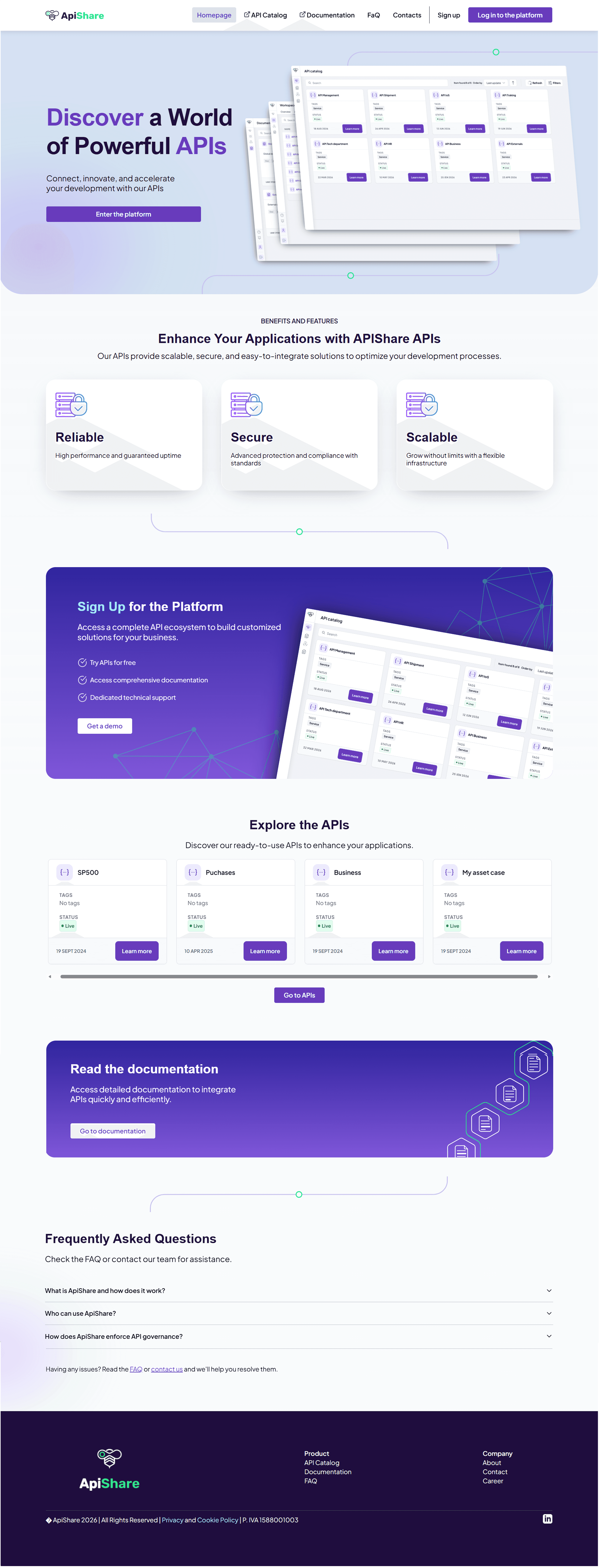
Public showcase home page presenting the API catalog to external developers

Login

To access the Platform, users must first log in using one of the supported authentication methods.

  • Standard Login: Use your username or email and your password.

  • SSO (Single Sign-On): Available for organizations that require centralized access control. Where configured, internal users accessing through SSO can be onboarded automatically, using the information provided by the company identity provider, and changes to their email address are synchronized from the identity provider at their next access.

⚠ Note: If you log in via SSO, your email and username cannot be modified in the Platform. For support, contact your administrator.

New users who are not registered yet can create an account with Sign up, if registration is enabled for your installation.

Once logged in, users are redirected to the homepage, which provides quick access to essential functionalities.

ApiShare login page with username and password fields and the Entra ID sign-in options

First access: welcome tour and joining an organization

At their first access, users are greeted by a welcome tour: a short guided walkthrough of what they can do in the Platform. Its content, logo and support references can be customized for each installation. The tour can be skipped and reopened at any time from Help.

A newly registered user does not belong to any organization yet, so they can browse the catalog but cannot subscribe to digital products. To start working, they can:

  1. Open Quick actions and select Join Organizations.

  2. In the Join the ecosystem window, select the organizations they want to join. Organizations to which a request has already been sent are marked as pending.

  3. Send the request. The administrators of each organization receive it and can approve or reject it. The status of each request is visible under Organizations › Join requests.

Alternatively, an organization administrator can invite the user directly. Once they are members of an organization, users share with the rest of their group the digital products visible in the catalog, the subscription requests and the related credentials.

Homepage Overview

The homepage is made of configurable widgets. The layout may vary depending on your installation and on your permissions. Typical widgets are:

  • High-Level KPI Board Displays real-time metrics about your ecosystem:

    • Total digital products published and visible in the catalog.

    • Total assets, where assets are enabled.

    • Total applications.

    • Total groups, organizations, and users in the ecosystem.

  • API and Application Categories Carousels of the categories used to classify products and applications, based on your installation.

  • Content widgets Free content defined by your organization, for example support contacts or announcements. Users with the right permissions can add, edit, arrange and delete widgets.
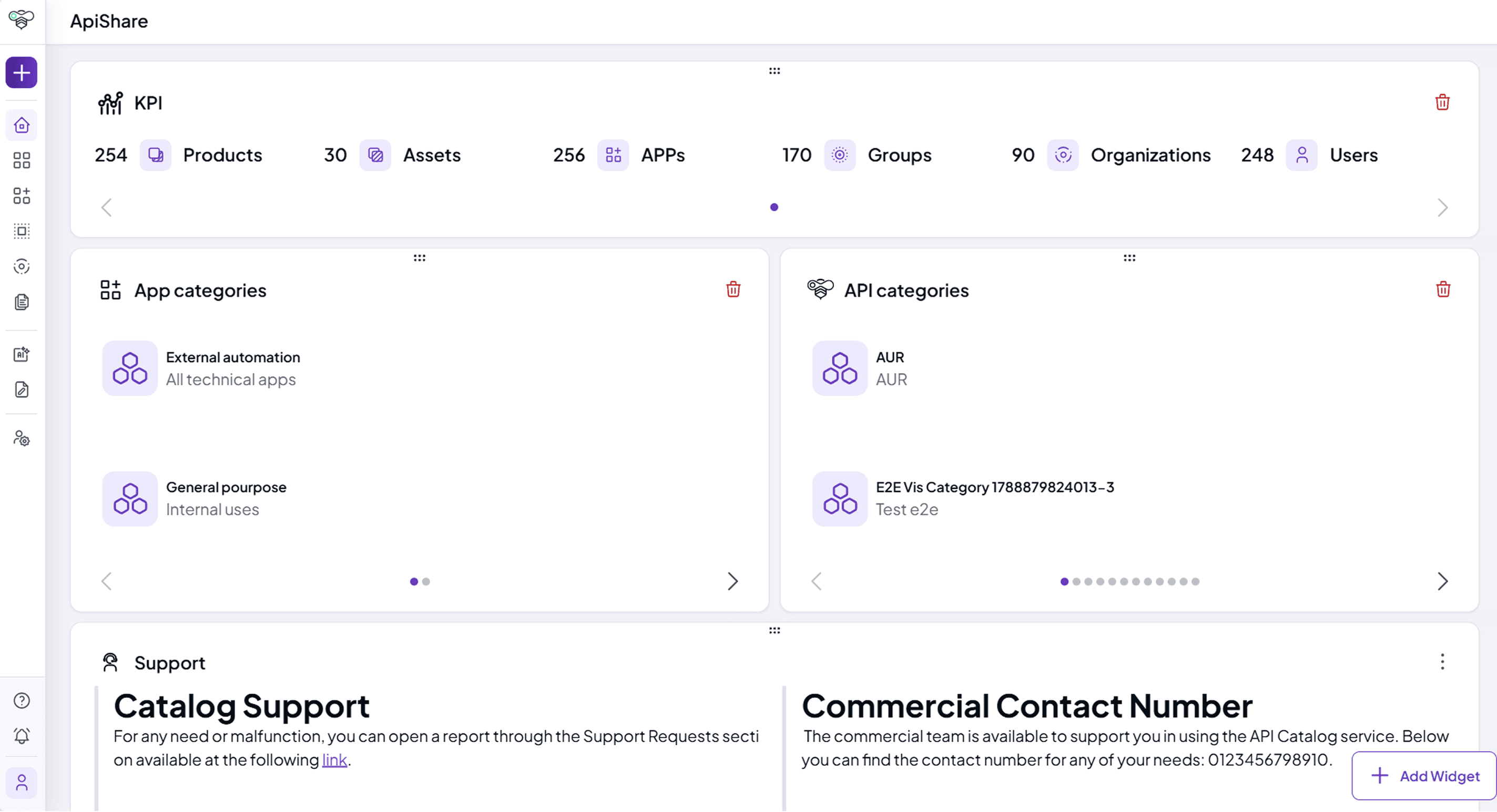
ApiShare home page with the KPI, categories, support and contact widgets

Side Menu Bar

The Side Menu Bar provides quick access to the Platform’s core functionalities. It is located on the left side of the interface and can be expanded or collapsed, or kept open with the lock button.

The main sections available in the side menu are listed below. Each user sees only the sections and actions allowed by their role and user type.

  • Quick actions:

    • Create a new digital product

    • Create a new asset, where assets are enabled

    • Create a new App

    • Create a new Organization

    • Request to join an organization

  • Homepage

    • Redirects users to the homepage for key insights and previews.

  • Active Catalog

    • Provides access to all the digital products available to the user: REST APIs, MCP servers, AI agents and other product types. Users for whom the Active Catalog is not enabled, such as guests, see the API Catalog instead.

  • App Catalog

    • Lists the applications registered on the platform.

  • Workspace

    • A dedicated area where users manage their own entities: digital products, assets, applications, subscriptions, key sets and network addresses.

  • Organizations

    • Allows users to manage organizational structures, internal teams, and external consumers, together with join requests and invitations.

  • Documentation

    • Provides access to general documentation, including for example user guides, guidelines, and best practices for governance.

  • API Analytics

    • Usage dashboards for APIs, if enabled for your installation.

  • Discovery AI Chat

    • An AI assistant that helps users find digital products and related information through natural-language questions. Available only if enabled for your installation.

  • Designer

    • Workspace for designing the OpenAPI specifications of REST APIs.

  • Administration

    • Reserved for users with administrative privileges to configure platform settings, manage policies, and define governance rules.

At the bottom of the side menu there are three more items:

  • Help: opens the guided tour of the Platform.

  • Notifications: view and manage notifications, and set your email notification preferences.

  • User profile: view and edit your personal information, see the organizations and roles you belong to, set your preferences (language, theme) and log out.

ApiShare home page with the left navigation menu and the user account panel

Active Catalog

The Active Catalog stores all the digital products available in your organization, whatever their type. It has two tabs: Digital products and Assets (where assets are enabled).

Active Catalog listing digital products with version, organization, owner, tags and status

Searching digital products

  • Use the type filter to show all digital products or only one type: API, MCP, AI Agent or other types configured for your installation.

  • Use the search bar with free-text search.

  • Apply filters (for example status, product type, organization, group, functional and technical contacts, tags) and save the filters you use most often.

  • Sort the results and switch between Cards view and Table view; in the table view you can choose which columns to display.

Digital product details

Each digital product entry contains information that depends on its type. A REST API, for example, contains:

  • Description: Purpose and functionality.

  • Lifecycle Status: Current stage, deployment history, and upcoming changes.

  • Testing Capabilities: OpenAPI definition and interactive console for testing.

  • Deployment Information: Availability across deployment environments.

  • Technical Details: API specifications.

  • Subscription & Usage: Consumer and provider applications.

Other types, such as MCP servers and AI agents, show the information defined by their template (for example the tools, prompts and resources of an MCP server, or the skills of an AI agent), together with their specifications, attachments and documentation. Every digital product can be subscribed to from its card or detail page.
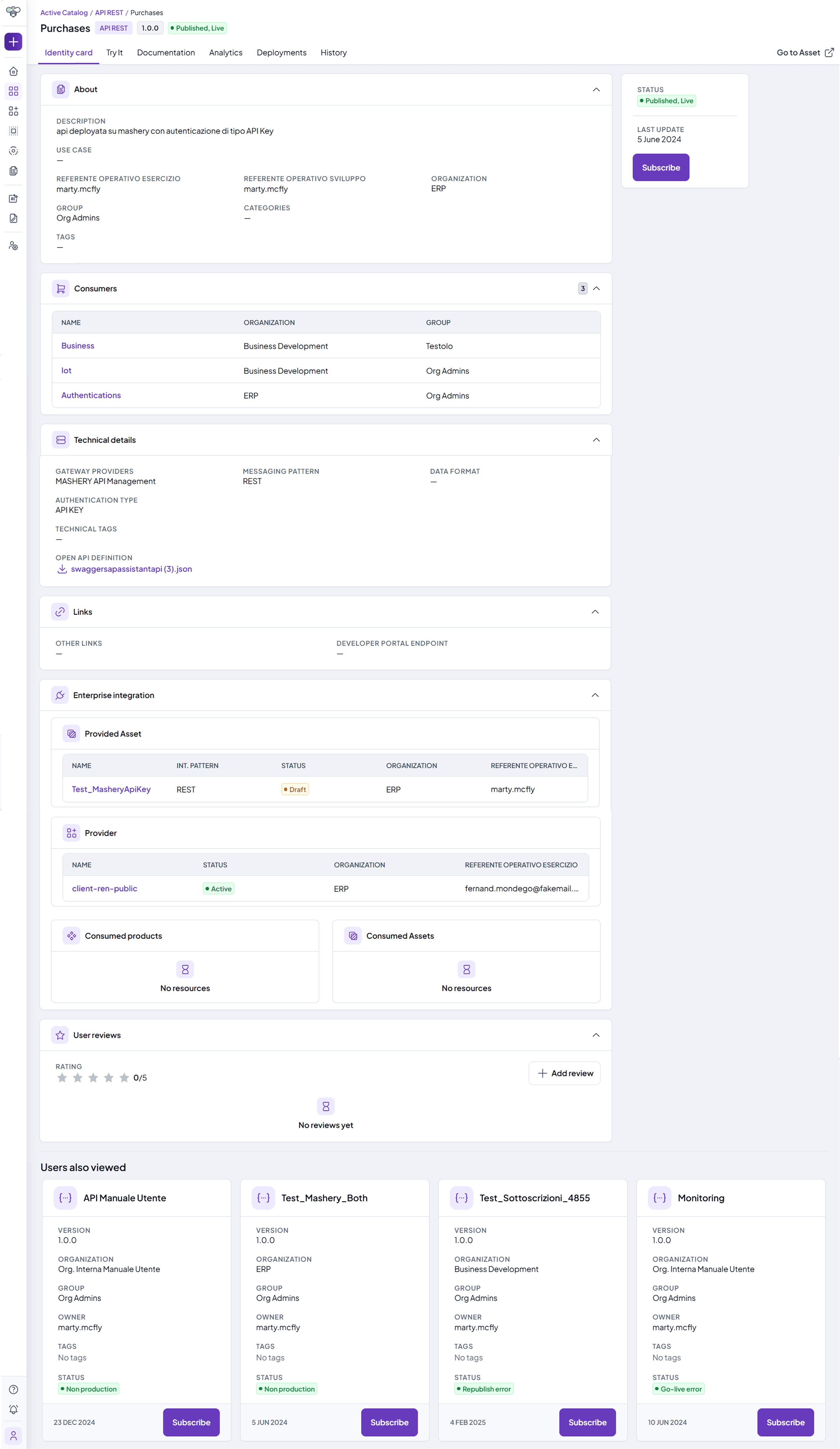
Digital product detail page with the about, consumers, technical details and enterprise integration sections

App Catalog

The App Catalog lists the applications registered in the Platform.
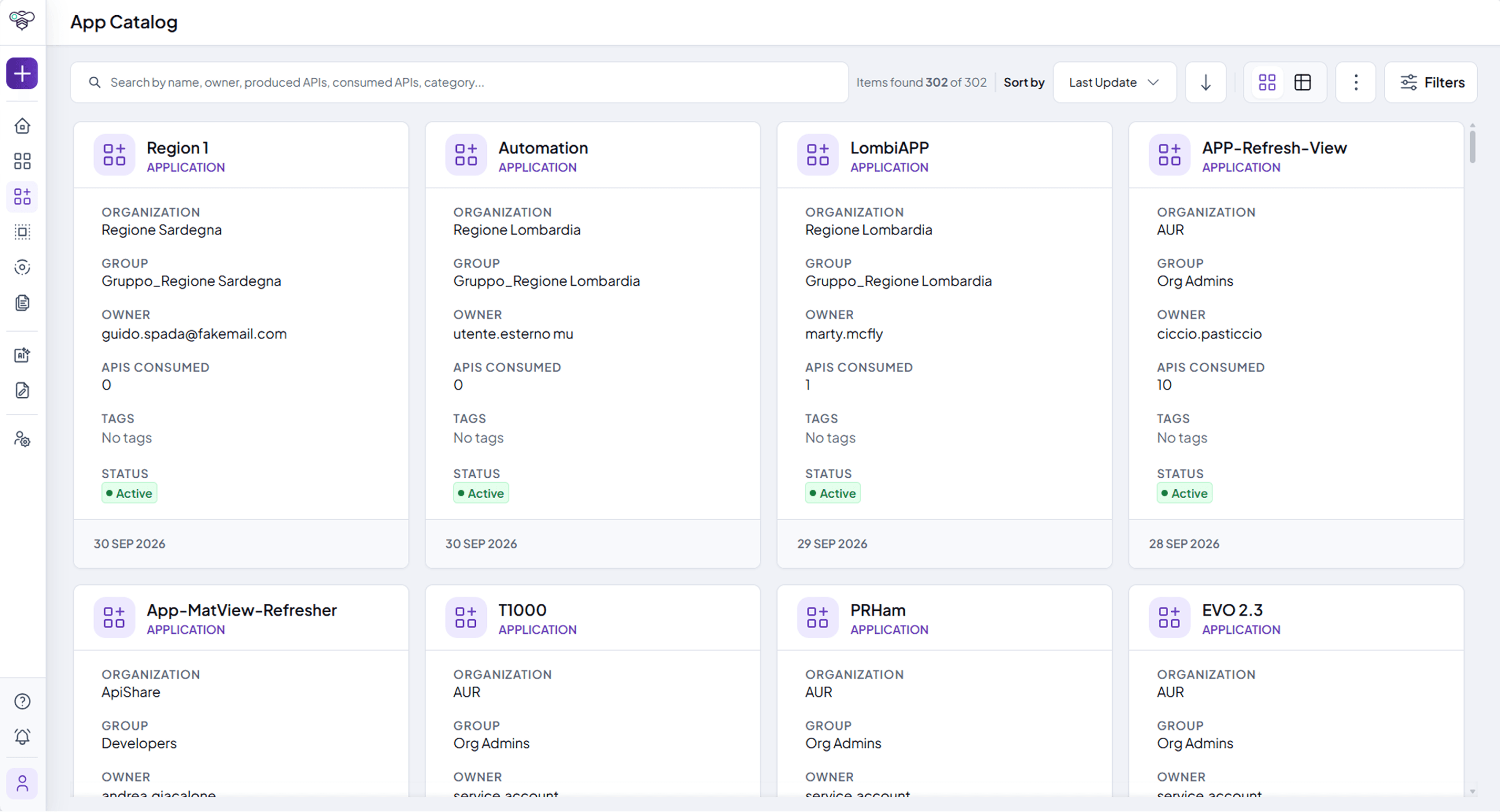
App Catalog listing the registered applications with organization, owner, APIs consumed and status

Searching Applications

  • Use the search bar with free-text search.

  • Apply filters (for example owner, consumed or produced products, tags, categories) and sort the results.

Application Details

Each Application entry contains:

  • Description: High-level overview of the application’s function.

  • Lifecycle Status: Readiness to consume or expose products.

  • Contact Persons: Support contacts.

  • Consumed and produced products: the digital products linked to the application.

⚠ Note: If assets are not enabled for your installation, they are not visible anywhere in the Platform.
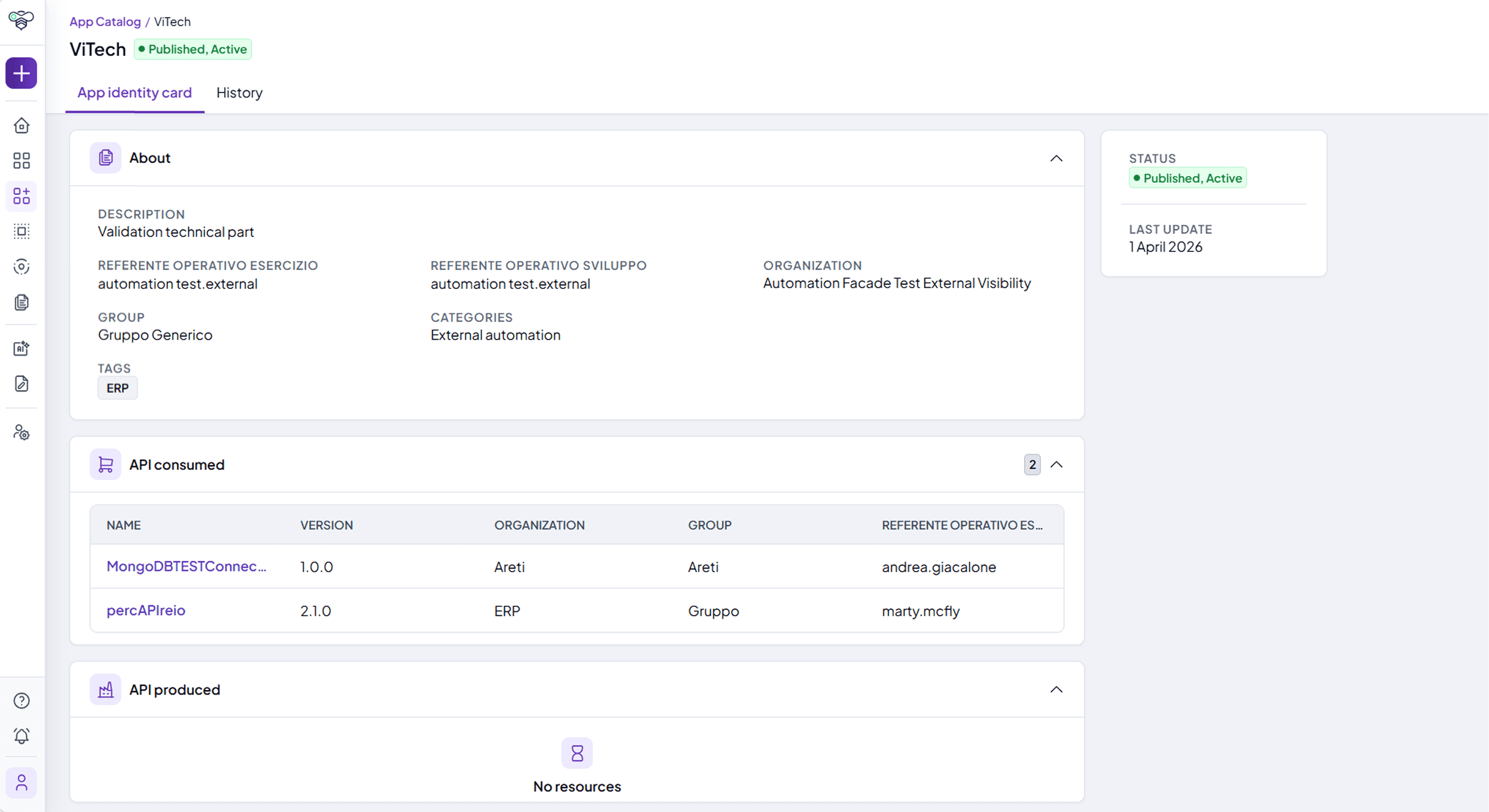
Application identity card with the APIs consumed and the APIs produced

Workspace

The Workspace is the operational hub for managing your own entities. Its tabs are Overview, Digital products, Assets, Apps, Subscriptions, Keys and Network, depending on your permissions and on what is enabled for your installation. It provides:

  • A consolidated view of all entities a user owns or can act upon, with an Overview that summarizes digital products, assets, subscriptions and applications.

  • Access to create, edit, and manage digital products, applications, subscriptions and key sets.

  • For administrators, the Network tab, which collects the IP addresses and lists authorized for subscriptions.

  • Filtering capabilities to search and organize entries by type, environment, status, and ownership.

Users can perform governance actions (e.g., publish a digital product, approve or suspend a subscription) based on their roles and permissions.
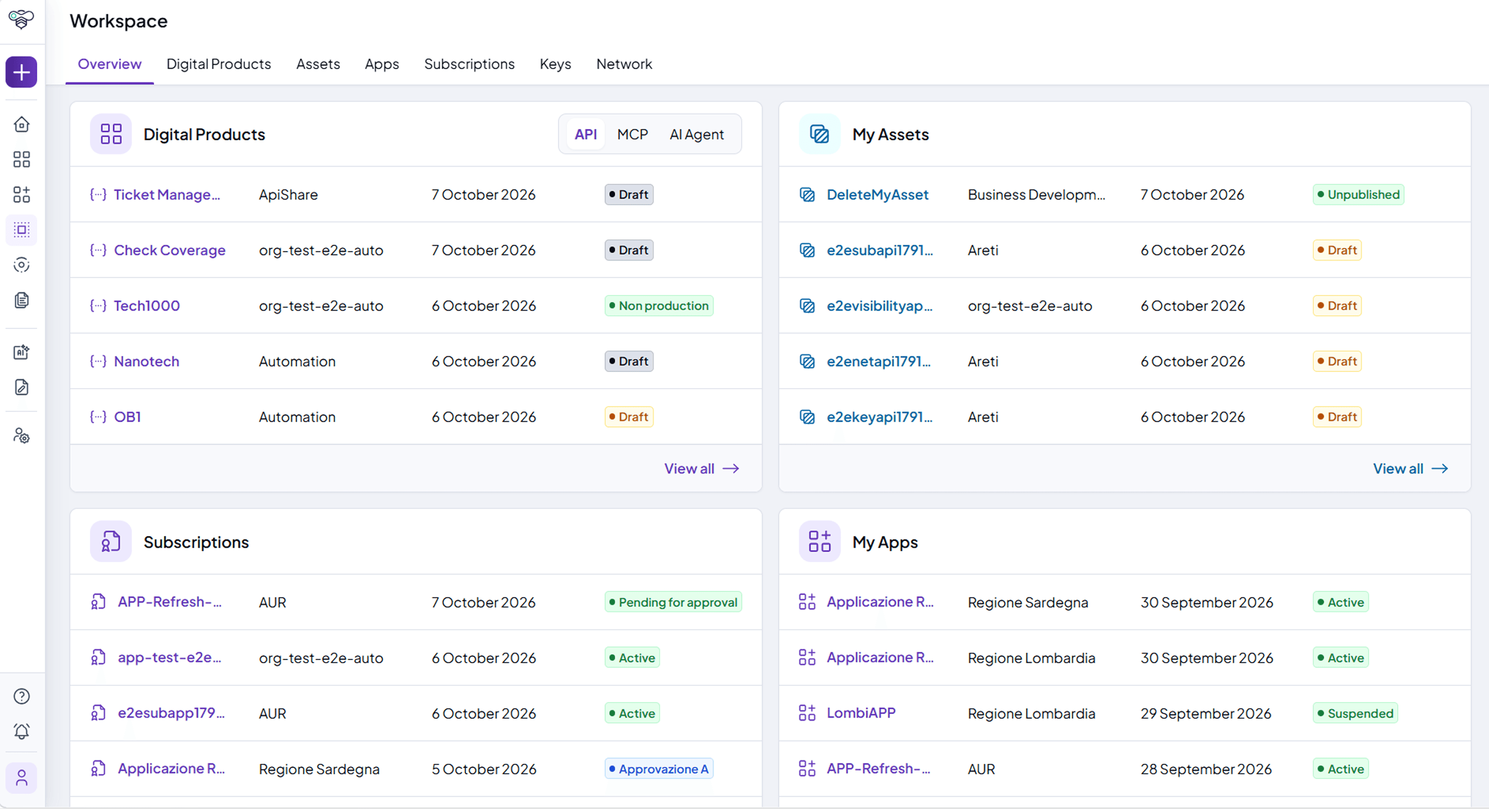
Workspace overview with the digital products, assets, subscriptions and apps of the logged-in user

Organizations

The Organizations section lets users:

  • View and manage the structure of internal teams and external consumers.

  • Register new organizations or groups.

  • Manage join requests and invitations.

  • Configure organization-level access rules and define associations with digital products and applications.

This is also the place where governance ownership (e.g., Provider vs. Consumer roles) is defined.

Organizations list with the contact, category and external id columns

Documentation

The Documentation section centralizes all reference and support material. It might include:

  • User Guides to help navigate platform features.

  • Guidelines and governance best practices.

  • Methodologies such as a governance framework for digital products.

  • Change logs, version updates, and known limitations.

This section is meant to support both onboarding and daily operations.
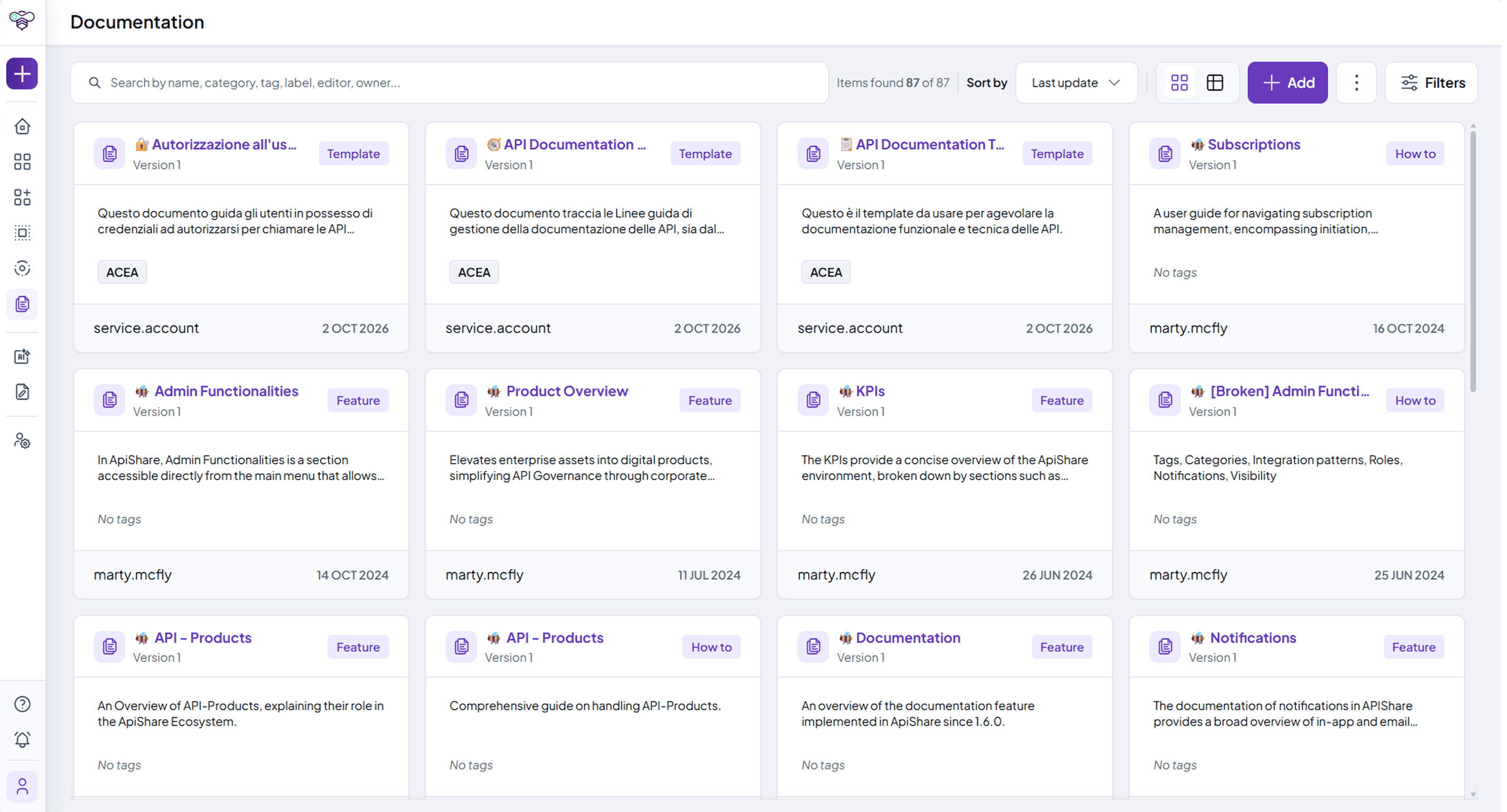
Documentation section listing documentation pages with their templates, features and how-to guides

Designer

The Designer section provides a dedicated workspace for working with the OpenAPI specifications of REST APIs within the Platform.

In this area, users can perform several actions on the specifications:

  • View all specification information in detail

  • Create specifications from scratch

  • Modify and correct existing specifications

  • Validate them according to the standard or internal parameters

  • Test API endpoints

  • Save specifications locally

  • Use Code View to edit the specification in its source format

  • Use Form View to work through a guided interface based on structured fields

  • Use Ask AI to get help from an AI assistant, if enabled for your installation

API Designer in Form View, on the Info section of the OpenAPI specification

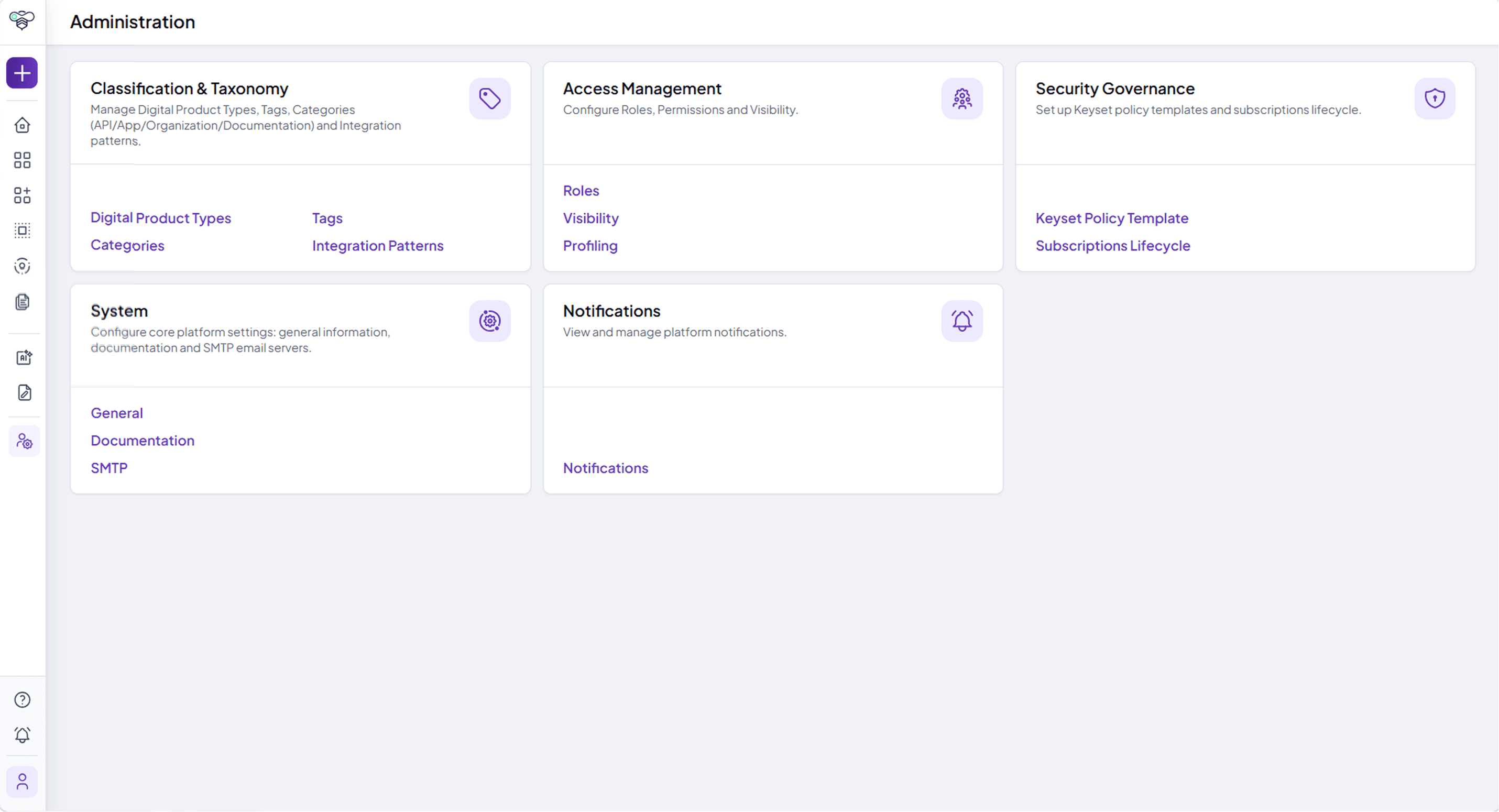
Administration

The Administration area is reserved for users with elevated privileges. It provides access to platform-level configuration settings, including:

  • Classification and taxonomy (digital product types and their templates, tags, categories, integration patterns)

  • Access management (roles and permissions, default visibility, profiling of what each user type can see)

  • Security (key set policy templates, subscription approval flow)

  • Notification Management

  • System settings

Administration panel with classification, access management, security governance, system and notification settings

Visibility & Access Control

The following is the typical configuration. Administrators can change what each user type can see at any time.

  • Internal Users: Have full access in their workspace to the digital products owned by their organizations and groups.

  • Both Internal & External Users: Can only access in the catalog the digital products whose visibility includes them.

  • Asset Visibility (where assets are enabled):

    • External users cannot see assets.

    • Internal users can see both digital products and assets.

  • Guests and visitors: Users who do not belong to any organization, and visitors who are not logged in, see the API Catalog and public documentation only.

First Steps: Setting Up Your Environment

To start using the Platform effectively, new users should perform the following setup actions:

  1. Define your initial configuration or choose the default one:

    • Set up your environment. This process can be performed with the support of our team, leveraging our governance framework to ensure a solid and scalable setup.

  2. Define Organization Structure

    • Set up internal teams and external consumers.

    • Assign administrators, producers and consumers with appropriate permissions.

  3. Configure your processes

    • Define subscription approval workflows.

    • Set up the lifecycle of digital products and applications (versioning, deprecation rules, etc.), to the extent your organization needs it.

    • Define access control rules for the default visibility of digital products and documentation. Our team can assist you with process configuration, also leveraging our governance framework to align with industry best practices.

  4. Create your First Application & Onboard Your First Digital Product: Start using the Platform by registering your first application and publishing your first digital product.

Prerequisites and System Requirements

  • Supported Browsers: Chrome, Firefox, Edge (latest versions).

  • Authentication Methods: Access with username/password, Single Sign-On (SSO) available on request.

  • API Gateway Integrations: See the section on available standard connectors for detailed integration options.

  • DevOps Compatibility: Compatible with major DevOps tools for seamless integration.

Menu della documentazione

Introduction

Table of Contents

This section provides an overview of the technical prerequisites, supported environments, and navigation essentials to help you get started quickly and effectively. From system requirements and authentication options to a detailed look at the interface layout, you’ll find all the information needed to set up your environment and begin managing your digital products and applications within the Platform.

What you see in the Platform depends on the capabilities enabled for your installation and on your role and user type. Menu items, catalogs and actions described on this page may therefore differ from your view. Administrators can change these settings at any time.

Public showcase

If enabled for your installation, the Public showcase serves as the default landing page before accessing the Platform login. It is a fully customizable, client-branded portal designed to present the key strengths of your digital products to both internal stakeholders and external audiences. The Public showcase can include the following sections:

  • Home – Introduces the value proposition of your published products and offers an overview of your strategy, with an Enter the platform button.

  • API Catalog – Displays publicly available APIs selected by your organization, including their documentation, status, and key details. Visitors who want to subscribe are asked to log in.

  • Documentation – Centralized space to share the documentation made public by your organization, such as onboarding materials or governance resources.

  • FAQ – Frequently Asked Questions to support new users and address common onboarding queries.

  • Contact – A customizable contact section to provide support or request access, tailored to your organizational needs.

  • Sign up and Log in – Entry points for new and registered users.

All content and visual elements of the Public showcase can be tailored to match your branding and communication strategy. The FAQ, Contact, Sign up and Log in pages can each be enabled or disabled, and custom buttons can be added to the header for visitors (for example a link to a developer portal or to support). This feature is especially useful for organizations aiming to promote their digital products, improve discoverability, and streamline onboarding for external developers or partners.

Public showcase home page presenting the API catalog to external developers

Login

To access the Platform, users must first log in using one of the supported authentication methods.

  • Standard Login: Use your username or email and your password.

  • SSO (Single Sign-On): Available for organizations that require centralized access control. Where configured, internal users accessing through SSO can be onboarded automatically, using the information provided by the company identity provider, and changes to their email address are synchronized from the identity provider at their next access.

⚠ Note: If you log in via SSO, your email and username cannot be modified in the Platform. For support, contact your administrator.

New users who are not registered yet can create an account with Sign up, if registration is enabled for your installation.

Once logged in, users are redirected to the homepage, which provides quick access to essential functionalities.

ApiShare login page with username and password fields and the Entra ID sign-in options

First access: welcome tour and joining an organization

At their first access, users are greeted by a welcome tour: a short guided walkthrough of what they can do in the Platform. Its content, logo and support references can be customized for each installation. The tour can be skipped and reopened at any time from Help.

A newly registered user does not belong to any organization yet, so they can browse the catalog but cannot subscribe to digital products. To start working, they can:

  1. Open Quick actions and select Join Organizations.

  2. In the Join the ecosystem window, select the organizations they want to join. Organizations to which a request has already been sent are marked as pending.

  3. Send the request. The administrators of each organization receive it and can approve or reject it. The status of each request is visible under Organizations › Join requests.

Alternatively, an organization administrator can invite the user directly. Once they are members of an organization, users share with the rest of their group the digital products visible in the catalog, the subscription requests and the related credentials.

Homepage Overview

The homepage is made of configurable widgets. The layout may vary depending on your installation and on your permissions. Typical widgets are:

  • High-Level KPI Board Displays real-time metrics about your ecosystem:

    • Total digital products published and visible in the catalog.

    • Total assets, where assets are enabled.

    • Total applications.

    • Total groups, organizations, and users in the ecosystem.

  • API and Application Categories Carousels of the categories used to classify products and applications, based on your installation.

  • Content widgets Free content defined by your organization, for example support contacts or announcements. Users with the right permissions can add, edit, arrange and delete widgets.

ApiShare home page with the KPI, categories, support and contact widgets

Side Menu Bar

The Side Menu Bar provides quick access to the Platform’s core functionalities. It is located on the left side of the interface and can be expanded or collapsed, or kept open with the lock button.

The main sections available in the side menu are listed below. Each user sees only the sections and actions allowed by their role and user type.

  • Quick actions:

    • Create a new digital product

    • Create a new asset, where assets are enabled

    • Create a new App

    • Create a new Organization

    • Request to join an organization

  • Homepage

    • Redirects users to the homepage for key insights and previews.

  • Active Catalog

    • Provides access to all the digital products available to the user: REST APIs, MCP servers, AI agents and other product types. Users for whom the Active Catalog is not enabled, such as guests, see the API Catalog instead.

  • App Catalog

    • Lists the applications registered on the platform.

  • Workspace

    • A dedicated area where users manage their own entities: digital products, assets, applications, subscriptions, key sets and network addresses.

  • Organizations

    • Allows users to manage organizational structures, internal teams, and external consumers, together with join requests and invitations.

  • Documentation

    • Provides access to general documentation, including for example user guides, guidelines, and best practices for governance.

  • API Analytics

    • Usage dashboards for APIs, if enabled for your installation.

  • Discovery AI Chat

    • An AI assistant that helps users find digital products and related information through natural-language questions. Available only if enabled for your installation.

  • Designer

    • Workspace for designing the OpenAPI specifications of REST APIs.

  • Administration

    • Reserved for users with administrative privileges to configure platform settings, manage policies, and define governance rules.

At the bottom of the side menu there are three more items:

  • Help: opens the guided tour of the Platform.

  • Notifications: view and manage notifications, and set your email notification preferences.

  • User profile: view and edit your personal information, see the organizations and roles you belong to, set your preferences (language, theme) and log out.

ApiShare home page with the left navigation menu and the user account panel

Active Catalog

The Active Catalog stores all the digital products available in your organization, whatever their type. It has two tabs: Digital products and Assets (where assets are enabled).

Active Catalog listing digital products with version, organization, owner, tags and status

Searching digital products

  • Use the type filter to show all digital products or only one type: API, MCP, AI Agent or other types configured for your installation.

  • Use the search bar with free-text search.

  • Apply filters (for example status, product type, organization, group, functional and technical contacts, tags) and save the filters you use most often.

  • Sort the results and switch between Cards view and Table view; in the table view you can choose which columns to display.

Digital product details

Each digital product entry contains information that depends on its type. A REST API, for example, contains:

  • Description: Purpose and functionality.

  • Lifecycle Status: Current stage, deployment history, and upcoming changes.

  • Testing Capabilities: OpenAPI definition and interactive console for testing.

  • Deployment Information: Availability across deployment environments.

  • Technical Details: API specifications.

  • Subscription & Usage: Consumer and provider applications.

Other types, such as MCP servers and AI agents, show the information defined by their template (for example the tools, prompts and resources of an MCP server, or the skills of an AI agent), together with their specifications, attachments and documentation. Every digital product can be subscribed to from its card or detail page.

Digital product detail page with the about, consumers, technical details and enterprise integration sections

App Catalog

The App Catalog lists the applications registered in the Platform.

App Catalog listing the registered applications with organization, owner, APIs consumed and status

Searching Applications

  • Use the search bar with free-text search.

  • Apply filters (for example owner, consumed or produced products, tags, categories) and sort the results.

Application Details

Each Application entry contains:

  • Description: High-level overview of the application’s function.

  • Lifecycle Status: Readiness to consume or expose products.

  • Contact Persons: Support contacts.

  • Consumed and produced products: the digital products linked to the application.

⚠ Note: If assets are not enabled for your installation, they are not visible anywhere in the Platform.

Application identity card with the APIs consumed and the APIs produced

Workspace

The Workspace is the operational hub for managing your own entities. Its tabs are Overview, Digital products, Assets, Apps, Subscriptions, Keys and Network, depending on your permissions and on what is enabled for your installation. It provides:

  • A consolidated view of all entities a user owns or can act upon, with an Overview that summarizes digital products, assets, subscriptions and applications.

  • Access to create, edit, and manage digital products, applications, subscriptions and key sets.

  • For administrators, the Network tab, which collects the IP addresses and lists authorized for subscriptions.

  • Filtering capabilities to search and organize entries by type, environment, status, and ownership.

Users can perform governance actions (e.g., publish a digital product, approve or suspend a subscription) based on their roles and permissions.

Workspace overview with the digital products, assets, subscriptions and apps of the logged-in user

Organizations

The Organizations section lets users:

  • View and manage the structure of internal teams and external consumers.

  • Register new organizations or groups.

  • Manage join requests and invitations.

  • Configure organization-level access rules and define associations with digital products and applications.

This is also the place where governance ownership (e.g., Provider vs. Consumer roles) is defined.

Organizations list with the contact, category and external id columns

Documentation

The Documentation section centralizes all reference and support material. It might include:

  • User Guides to help navigate platform features.

  • Guidelines and governance best practices.

  • Methodologies such as a governance framework for digital products.

  • Change logs, version updates, and known limitations.

This section is meant to support both onboarding and daily operations.

Documentation section listing documentation pages with their templates, features and how-to guides

Designer

The Designer section provides a dedicated workspace for working with the OpenAPI specifications of REST APIs within the Platform.

In this area, users can perform several actions on the specifications:

  • View all specification information in detail

  • Create specifications from scratch

  • Modify and correct existing specifications

  • Validate them according to the standard or internal parameters

  • Test API endpoints

  • Save specifications locally

  • Use Code View to edit the specification in its source format

  • Use Form View to work through a guided interface based on structured fields

  • Use Ask AI to get help from an AI assistant, if enabled for your installation

API Designer in Form View, on the Info section of the OpenAPI specification

Administration

The Administration area is reserved for users with elevated privileges. It provides access to platform-level configuration settings, including:

  • Classification and taxonomy (digital product types and their templates, tags, categories, integration patterns)

  • Access management (roles and permissions, default visibility, profiling of what each user type can see)

  • Security (key set policy templates, subscription approval flow)

  • Notification Management

  • System settings

Administration panel with classification, access management, security governance, system and notification settings

Visibility & Access Control

The following is the typical configuration. Administrators can change what each user type can see at any time.

  • Internal Users: Have full access in their workspace to the digital products owned by their organizations and groups.

  • Both Internal & External Users: Can only access in the catalog the digital products whose visibility includes them.

  • Asset Visibility (where assets are enabled):

    • External users cannot see assets.

    • Internal users can see both digital products and assets.

  • Guests and visitors: Users who do not belong to any organization, and visitors who are not logged in, see the API Catalog and public documentation only.

First Steps: Setting Up Your Environment

To start using the Platform effectively, new users should perform the following setup actions:

  1. Define your initial configuration or choose the default one:

    • Set up your environment. This process can be performed with the support of our team, leveraging our governance framework to ensure a solid and scalable setup.

  2. Define Organization Structure

    • Set up internal teams and external consumers.

    • Assign administrators, producers and consumers with appropriate permissions.

  3. Configure your processes

    • Define subscription approval workflows.

    • Set up the lifecycle of digital products and applications (versioning, deprecation rules, etc.), to the extent your organization needs it.

    • Define access control rules for the default visibility of digital products and documentation. Our team can assist you with process configuration, also leveraging our governance framework to align with industry best practices.

  4. Create your First Application & Onboard Your First Digital Product: Start using the Platform by registering your first application and publishing your first digital product.

Prerequisites and System Requirements

  • Supported Browsers: Chrome, Firefox, Edge (latest versions).

  • Authentication Methods: Access with username/password, Single Sign-On (SSO) available on request.

  • API Gateway Integrations: See the section on available standard connectors for detailed integration options.

  • DevOps Compatibility: Compatible with major DevOps tools for seamless integration.

Menu della documentazione

Introduction

Table of Contents

This section provides an overview of the technical prerequisites, supported environments, and navigation essentials to help you get started quickly and effectively. From system requirements and authentication options to a detailed look at the interface layout, you’ll find all the information needed to set up your environment and begin managing your digital products and applications within the Platform.

What you see in the Platform depends on the capabilities enabled for your installation and on your role and user type. Menu items, catalogs and actions described on this page may therefore differ from your view. Administrators can change these settings at any time.

Public showcase

If enabled for your installation, the Public showcase serves as the default landing page before accessing the Platform login. It is a fully customizable, client-branded portal designed to present the key strengths of your digital products to both internal stakeholders and external audiences. The Public showcase can include the following sections:

  • Home – Introduces the value proposition of your published products and offers an overview of your strategy, with an Enter the platform button.

  • API Catalog – Displays publicly available APIs selected by your organization, including their documentation, status, and key details. Visitors who want to subscribe are asked to log in.

  • Documentation – Centralized space to share the documentation made public by your organization, such as onboarding materials or governance resources.

  • FAQ – Frequently Asked Questions to support new users and address common onboarding queries.

  • Contact – A customizable contact section to provide support or request access, tailored to your organizational needs.

  • Sign up and Log in – Entry points for new and registered users.

All content and visual elements of the Public showcase can be tailored to match your branding and communication strategy. The FAQ, Contact, Sign up and Log in pages can each be enabled or disabled, and custom buttons can be added to the header for visitors (for example a link to a developer portal or to support). This feature is especially useful for organizations aiming to promote their digital products, improve discoverability, and streamline onboarding for external developers or partners.

Public showcase home page presenting the API catalog to external developers

Login

To access the Platform, users must first log in using one of the supported authentication methods.

  • Standard Login: Use your username or email and your password.

  • SSO (Single Sign-On): Available for organizations that require centralized access control. Where configured, internal users accessing through SSO can be onboarded automatically, using the information provided by the company identity provider, and changes to their email address are synchronized from the identity provider at their next access.

⚠ Note: If you log in via SSO, your email and username cannot be modified in the Platform. For support, contact your administrator.

New users who are not registered yet can create an account with Sign up, if registration is enabled for your installation.

Once logged in, users are redirected to the homepage, which provides quick access to essential functionalities.

ApiShare login page with username and password fields and the Entra ID sign-in options

First access: welcome tour and joining an organization

At their first access, users are greeted by a welcome tour: a short guided walkthrough of what they can do in the Platform. Its content, logo and support references can be customized for each installation. The tour can be skipped and reopened at any time from Help.

A newly registered user does not belong to any organization yet, so they can browse the catalog but cannot subscribe to digital products. To start working, they can:

  1. Open Quick actions and select Join Organizations.

  2. In the Join the ecosystem window, select the organizations they want to join. Organizations to which a request has already been sent are marked as pending.

  3. Send the request. The administrators of each organization receive it and can approve or reject it. The status of each request is visible under Organizations › Join requests.

Alternatively, an organization administrator can invite the user directly. Once they are members of an organization, users share with the rest of their group the digital products visible in the catalog, the subscription requests and the related credentials.

Homepage Overview

The homepage is made of configurable widgets. The layout may vary depending on your installation and on your permissions. Typical widgets are:

  • High-Level KPI Board Displays real-time metrics about your ecosystem:

    • Total digital products published and visible in the catalog.

    • Total assets, where assets are enabled.

    • Total applications.

    • Total groups, organizations, and users in the ecosystem.

  • API and Application Categories Carousels of the categories used to classify products and applications, based on your installation.

  • Content widgets Free content defined by your organization, for example support contacts or announcements. Users with the right permissions can add, edit, arrange and delete widgets.

ApiShare home page with the KPI, categories, support and contact widgets

Side Menu Bar

The Side Menu Bar provides quick access to the Platform’s core functionalities. It is located on the left side of the interface and can be expanded or collapsed, or kept open with the lock button.

The main sections available in the side menu are listed below. Each user sees only the sections and actions allowed by their role and user type.

  • Quick actions:

    • Create a new digital product

    • Create a new asset, where assets are enabled

    • Create a new App

    • Create a new Organization

    • Request to join an organization

  • Homepage

    • Redirects users to the homepage for key insights and previews.

  • Active Catalog

    • Provides access to all the digital products available to the user: REST APIs, MCP servers, AI agents and other product types. Users for whom the Active Catalog is not enabled, such as guests, see the API Catalog instead.

  • App Catalog

    • Lists the applications registered on the platform.

  • Workspace

    • A dedicated area where users manage their own entities: digital products, assets, applications, subscriptions, key sets and network addresses.

  • Organizations

    • Allows users to manage organizational structures, internal teams, and external consumers, together with join requests and invitations.

  • Documentation

    • Provides access to general documentation, including for example user guides, guidelines, and best practices for governance.

  • API Analytics

    • Usage dashboards for APIs, if enabled for your installation.

  • Discovery AI Chat

    • An AI assistant that helps users find digital products and related information through natural-language questions. Available only if enabled for your installation.

  • Designer

    • Workspace for designing the OpenAPI specifications of REST APIs.

  • Administration

    • Reserved for users with administrative privileges to configure platform settings, manage policies, and define governance rules.

At the bottom of the side menu there are three more items:

  • Help: opens the guided tour of the Platform.

  • Notifications: view and manage notifications, and set your email notification preferences.

  • User profile: view and edit your personal information, see the organizations and roles you belong to, set your preferences (language, theme) and log out.

ApiShare home page with the left navigation menu and the user account panel

Active Catalog

The Active Catalog stores all the digital products available in your organization, whatever their type. It has two tabs: Digital products and Assets (where assets are enabled).

Active Catalog listing digital products with version, organization, owner, tags and status

Searching digital products

  • Use the type filter to show all digital products or only one type: API, MCP, AI Agent or other types configured for your installation.

  • Use the search bar with free-text search.

  • Apply filters (for example status, product type, organization, group, functional and technical contacts, tags) and save the filters you use most often.

  • Sort the results and switch between Cards view and Table view; in the table view you can choose which columns to display.

Digital product details

Each digital product entry contains information that depends on its type. A REST API, for example, contains:

  • Description: Purpose and functionality.

  • Lifecycle Status: Current stage, deployment history, and upcoming changes.

  • Testing Capabilities: OpenAPI definition and interactive console for testing.

  • Deployment Information: Availability across deployment environments.

  • Technical Details: API specifications.

  • Subscription & Usage: Consumer and provider applications.

Other types, such as MCP servers and AI agents, show the information defined by their template (for example the tools, prompts and resources of an MCP server, or the skills of an AI agent), together with their specifications, attachments and documentation. Every digital product can be subscribed to from its card or detail page.

Digital product detail page with the about, consumers, technical details and enterprise integration sections

App Catalog

The App Catalog lists the applications registered in the Platform.

App Catalog listing the registered applications with organization, owner, APIs consumed and status

Searching Applications

  • Use the search bar with free-text search.

  • Apply filters (for example owner, consumed or produced products, tags, categories) and sort the results.

Application Details

Each Application entry contains:

  • Description: High-level overview of the application’s function.

  • Lifecycle Status: Readiness to consume or expose products.

  • Contact Persons: Support contacts.

  • Consumed and produced products: the digital products linked to the application.

⚠ Note: If assets are not enabled for your installation, they are not visible anywhere in the Platform.

Application identity card with the APIs consumed and the APIs produced

Workspace

The Workspace is the operational hub for managing your own entities. Its tabs are Overview, Digital products, Assets, Apps, Subscriptions, Keys and Network, depending on your permissions and on what is enabled for your installation. It provides:

  • A consolidated view of all entities a user owns or can act upon, with an Overview that summarizes digital products, assets, subscriptions and applications.

  • Access to create, edit, and manage digital products, applications, subscriptions and key sets.

  • For administrators, the Network tab, which collects the IP addresses and lists authorized for subscriptions.

  • Filtering capabilities to search and organize entries by type, environment, status, and ownership.

Users can perform governance actions (e.g., publish a digital product, approve or suspend a subscription) based on their roles and permissions.

Workspace overview with the digital products, assets, subscriptions and apps of the logged-in user

Organizations

The Organizations section lets users:

  • View and manage the structure of internal teams and external consumers.

  • Register new organizations or groups.

  • Manage join requests and invitations.

  • Configure organization-level access rules and define associations with digital products and applications.

This is also the place where governance ownership (e.g., Provider vs. Consumer roles) is defined.

Organizations list with the contact, category and external id columns

Documentation

The Documentation section centralizes all reference and support material. It might include:

  • User Guides to help navigate platform features.

  • Guidelines and governance best practices.

  • Methodologies such as a governance framework for digital products.

  • Change logs, version updates, and known limitations.

This section is meant to support both onboarding and daily operations.

Documentation section listing documentation pages with their templates, features and how-to guides

Designer

The Designer section provides a dedicated workspace for working with the OpenAPI specifications of REST APIs within the Platform.

In this area, users can perform several actions on the specifications:

  • View all specification information in detail

  • Create specifications from scratch

  • Modify and correct existing specifications

  • Validate them according to the standard or internal parameters

  • Test API endpoints

  • Save specifications locally

  • Use Code View to edit the specification in its source format

  • Use Form View to work through a guided interface based on structured fields

  • Use Ask AI to get help from an AI assistant, if enabled for your installation

API Designer in Form View, on the Info section of the OpenAPI specification

Administration

The Administration area is reserved for users with elevated privileges. It provides access to platform-level configuration settings, including:

  • Classification and taxonomy (digital product types and their templates, tags, categories, integration patterns)

  • Access management (roles and permissions, default visibility, profiling of what each user type can see)

  • Security (key set policy templates, subscription approval flow)

  • Notification Management

  • System settings

Administration panel with classification, access management, security governance, system and notification settings

Visibility & Access Control

The following is the typical configuration. Administrators can change what each user type can see at any time.

  • Internal Users: Have full access in their workspace to the digital products owned by their organizations and groups.

  • Both Internal & External Users: Can only access in the catalog the digital products whose visibility includes them.

  • Asset Visibility (where assets are enabled):

    • External users cannot see assets.

    • Internal users can see both digital products and assets.

  • Guests and visitors: Users who do not belong to any organization, and visitors who are not logged in, see the API Catalog and public documentation only.

First Steps: Setting Up Your Environment

To start using the Platform effectively, new users should perform the following setup actions:

  1. Define your initial configuration or choose the default one:

    • Set up your environment. This process can be performed with the support of our team, leveraging our governance framework to ensure a solid and scalable setup.

  2. Define Organization Structure

    • Set up internal teams and external consumers.

    • Assign administrators, producers and consumers with appropriate permissions.

  3. Configure your processes

    • Define subscription approval workflows.

    • Set up the lifecycle of digital products and applications (versioning, deprecation rules, etc.), to the extent your organization needs it.

    • Define access control rules for the default visibility of digital products and documentation. Our team can assist you with process configuration, also leveraging our governance framework to align with industry best practices.

  4. Create your First Application & Onboard Your First Digital Product: Start using the Platform by registering your first application and publishing your first digital product.

Prerequisites and System Requirements

  • Supported Browsers: Chrome, Firefox, Edge (latest versions).

  • Authentication Methods: Access with username/password, Single Sign-On (SSO) available on request.

  • API Gateway Integrations: See the section on available standard connectors for detailed integration options.

  • DevOps Compatibility: Compatible with major DevOps tools for seamless integration.