Introduction
The Public Showcase is available if enabled for your installation.
Overview
The Public Showcase feature of the Platform provides customers with a customizable public space to present their APIs and related resources to an external audience. This area can be used to publish APIs with their documentation, share frequently asked questions (FAQs), and display contact information. The intent of the Public Showcase is to help organizations promote their APIs and supporting materials to users who do not have direct access to the Platform.
Customers retain full control over what to make public: each API can be published or kept private at the customer’s discretion, through its visibility settings. The Showcase itself is fully customizable, both in terms of content and visual design, ensuring consistency with the organization’s branding and communication style.
Users who browse the Showcase without being registered have the Visitor role: they only see the content made public (see Roles and Permissions).
Home page
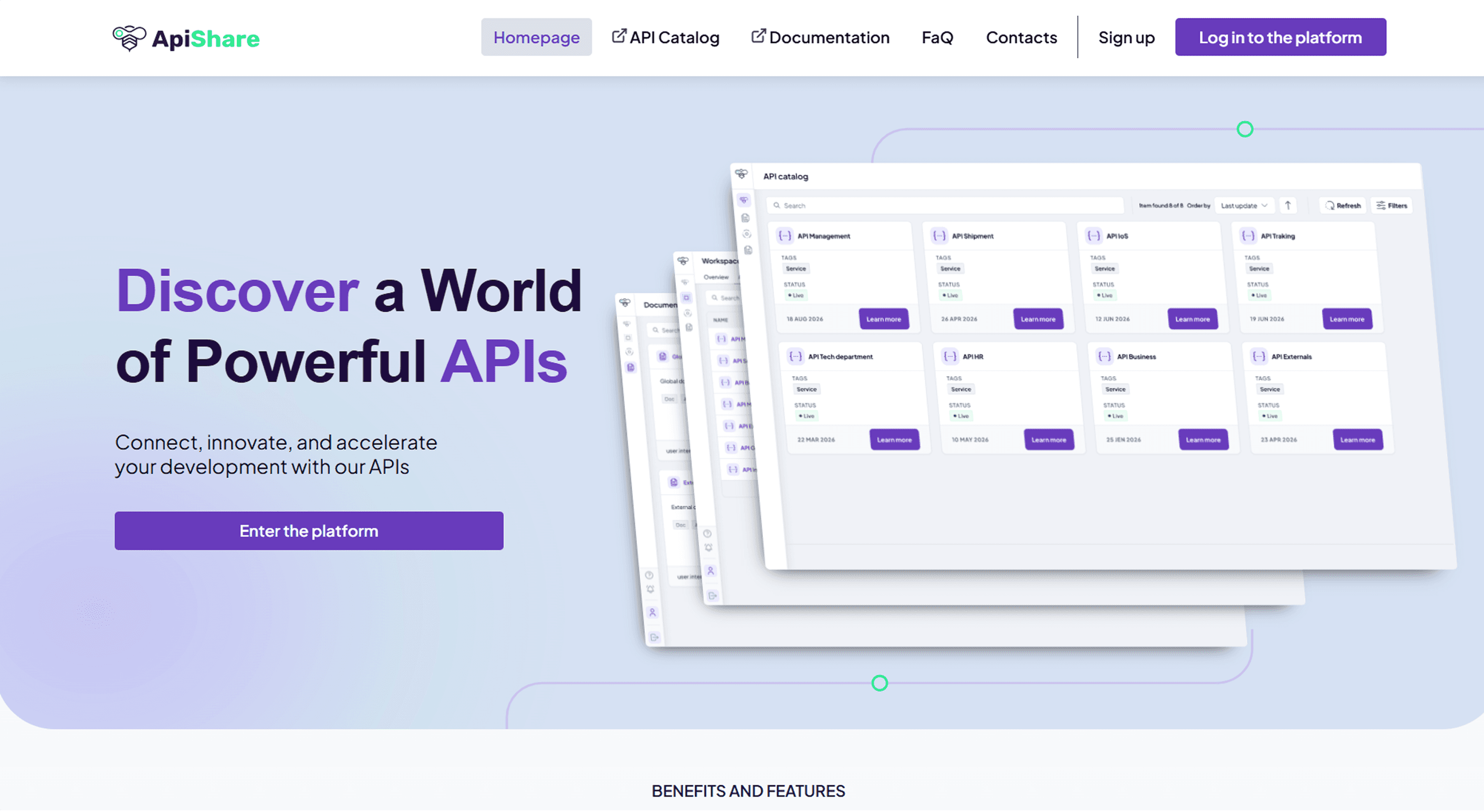
The Showcase home page provides an at-a-glance view of the content available to visitors. This may include highlights from the public API catalog, a preview of FAQs, general information banners, and calls-to-action (CTAs) linking to documentation or contact sections. The type, amount, and placement of this content are entirely configurable by the customer.
Catalog
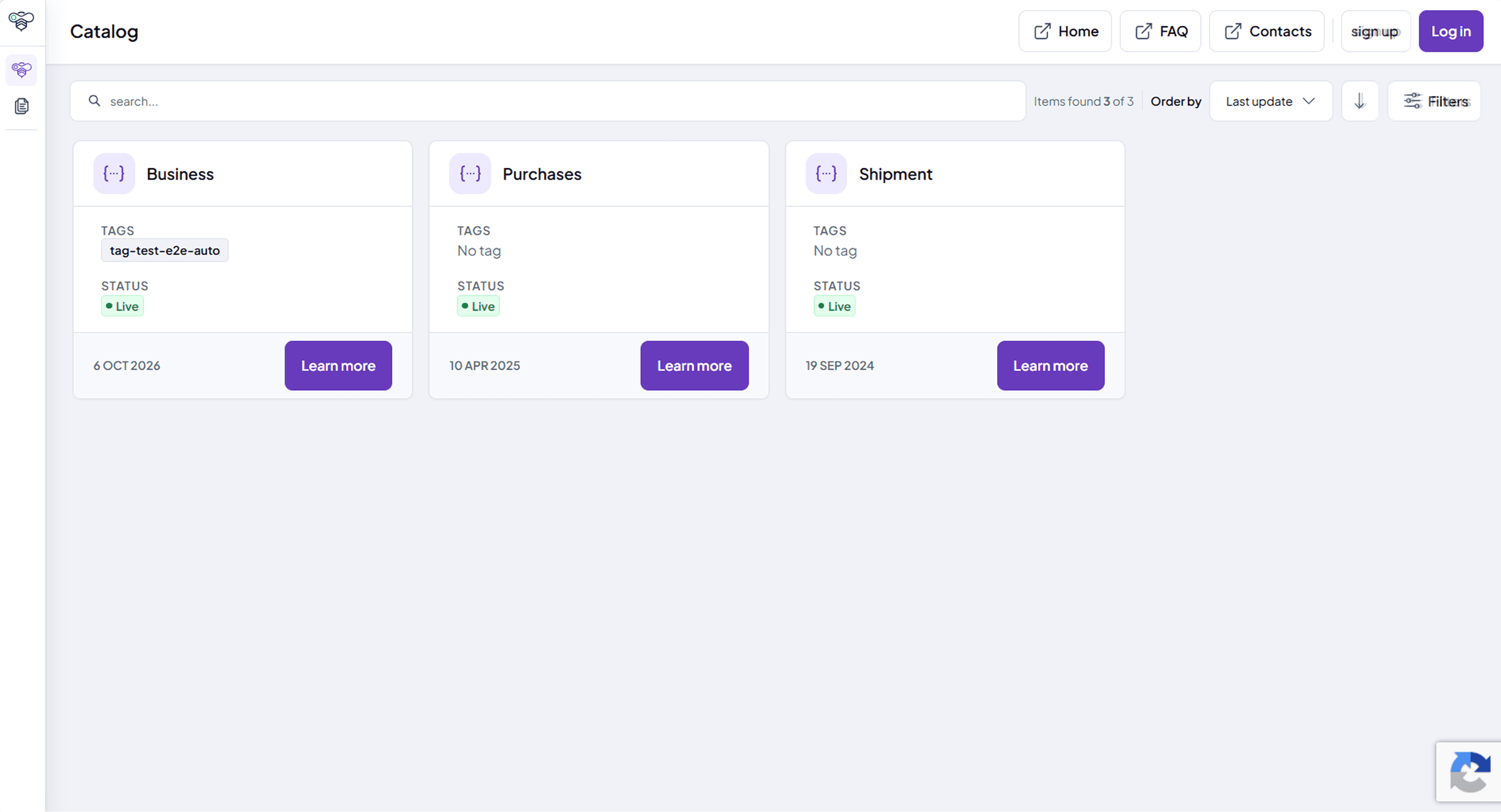
The API Catalog within the Public Showcase offers a simplified view of selected APIs from the platform. Each API is represented by an identity card, a compact version of the one found in the main platform, displaying only essential details.
The detail page of a public API is organized in the General information, Documentation and Test tabs:
Try it (OpenAPI): Allows visitors to test the API by executing example calls directly from the showcase.
Documentation: Provides access to the API-specific documentation associated with the selected API.
Technical details: Show the messaging pattern, data format, authentication type and the downloadable OpenAPI definition. Reviews are shown in read-only mode.
Instead of the Subscribe button, visitors find Log in to subscribe, which leads them to the authentication page. This ensures that external users can quickly understand, test, and explore the APIs on display.
Documentation
The Documentation section hosts general resources not tied to a specific API. Customers can decide which documents to make public, giving them flexibility in sharing knowledge while keeping sensitive content private. Only documentation with public visibility is shown.
The layout includes a left-hand navigation menu listing all available documents and a right-hand table of contents for the page currently in view. This structure supports clear navigation and quick access to relevant sections.

FAQ
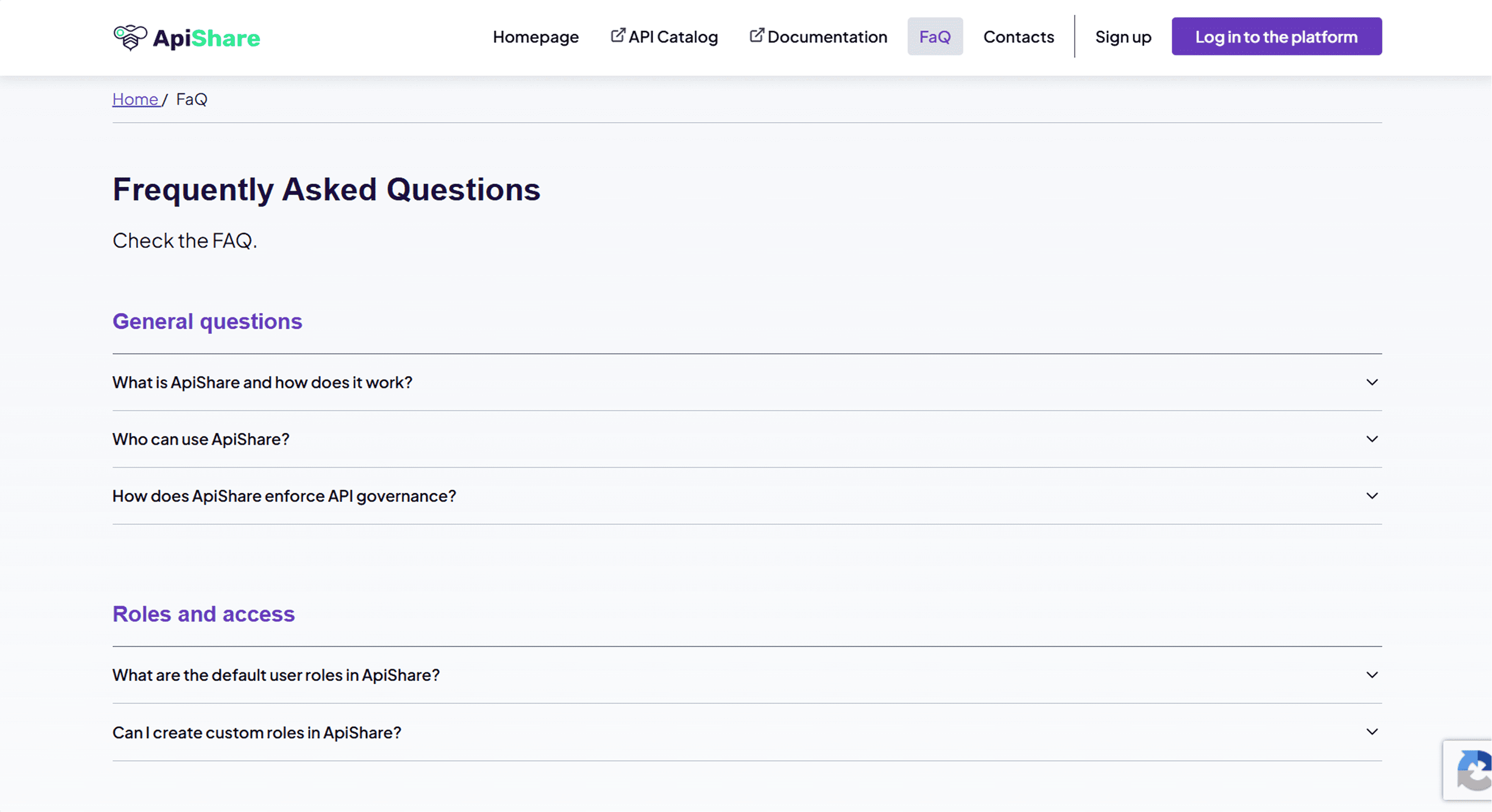
As with any public-facing website, the Showcase includes a Frequently Asked Questions (FAQ) section. Content is entirely customizable, allowing customers to address common questions and provide clarifications tailored to their audience.
Contacts
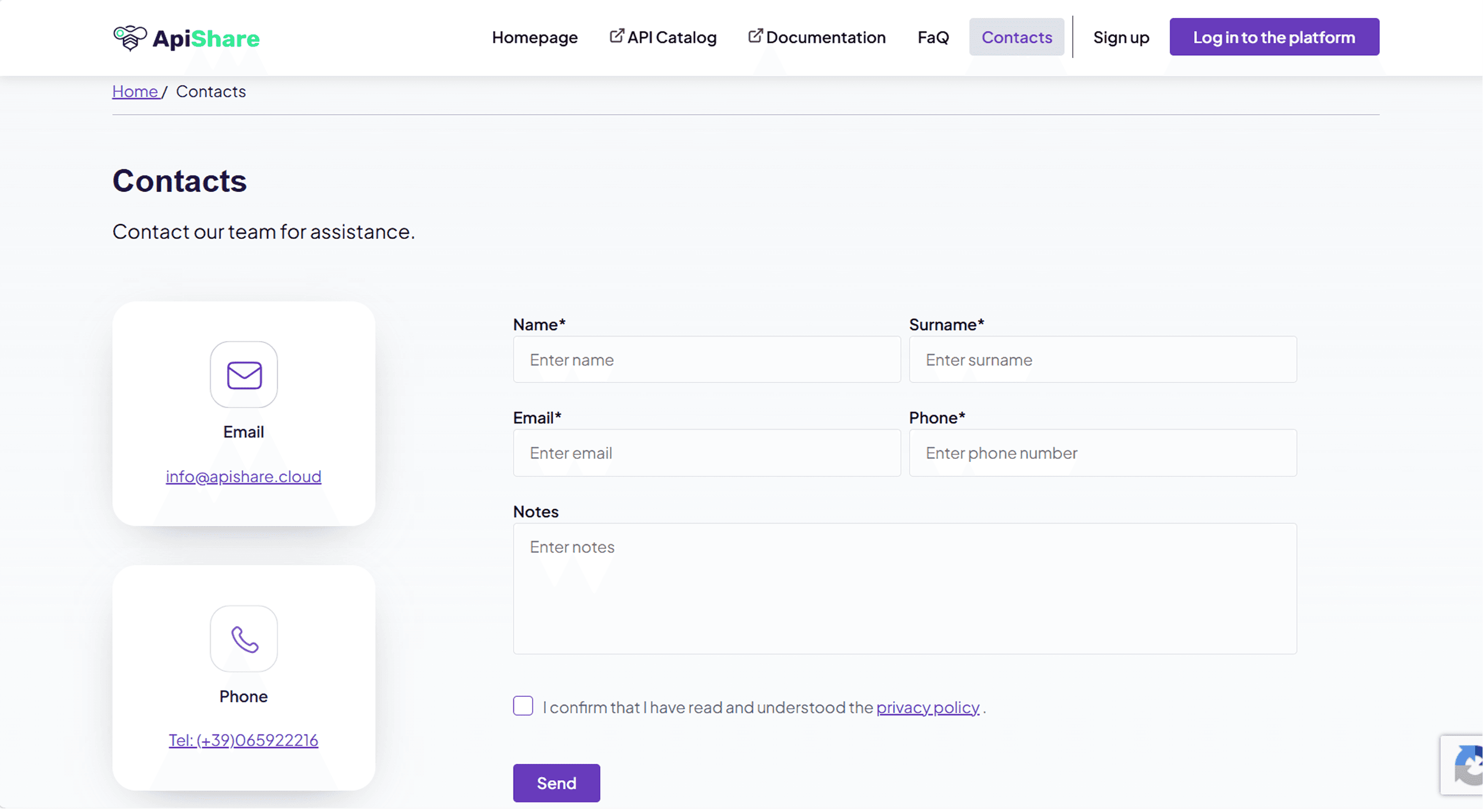
The Contacts section provides visitors with relevant contact information and includes a request form for additional inquiries. Customers can decide which contact details to make visible, ensuring that external users have a clear communication channel.
Sign up & Log in to the platform
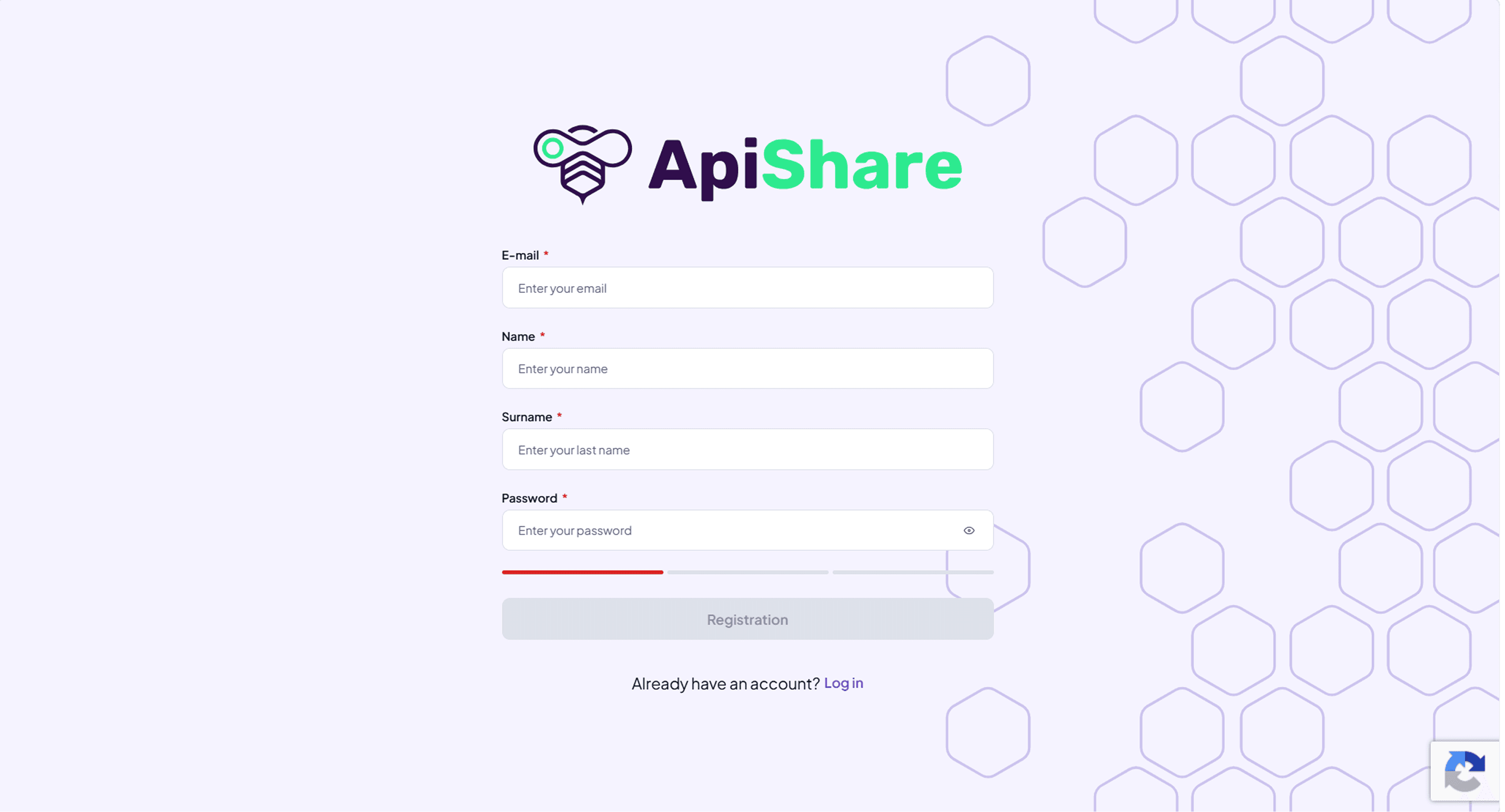
The Showcase also provides quick access to the Platform itself. From the right-hand side of the navigation bar, visitors can use the Sign Up and Log In buttons to reach the authentication page. After completing the registration process and receiving the necessary permissions, users can begin working directly within the Platform.

Configuring the pages of the Showcase
Each installation decides which pages of the Showcase are offered to visitors. The FAQ, Contacts, Log in and Sign up pages can be enabled or disabled individually, and custom buttons can be added to the header of the Showcase to link visitors to other resources of the organization. When a page is disabled, the corresponding entry disappears from the Showcase menu.
The FAQ, Contacts, Log in and Sign up pages can now be enabled individually, and custom header buttons can be configured for visitors. These options are set when the installation is configured.